
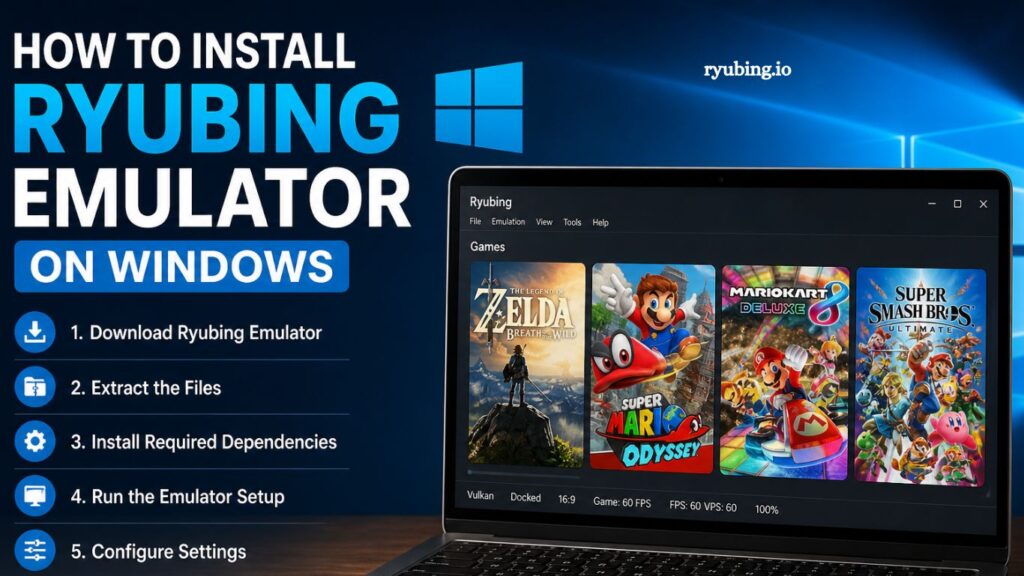
Ryubing Emulator has become a popular choice among gaming enthusiasts who want to enjoy console games on a Windows PC with smoother performance and enhanced control options. Proper installation ensures stable gameplay, fewer errors, and better system optimization. This guide explains the complete installation process in a clear, structured, and user-friendly way so anyone can set up Ryubing Emulator on Windows without confusion.
Understanding Ryubing Emulator
Ryubing Emulator is a software tool designed to replicate console gaming environments on Windows. It allows users to run compatible games by simulating the original hardware environment. Gamers often prefer emulators like Ryubing because they offer improved graphics settings, customizable controls, and performance tweaks that are not always available on original consoles.
Before installation, it is important to understand system requirements and compatibility to ensure smooth operation.
Read More: How to Download Ryubing Emulator on PC: Step-by-Step Guide
System Requirements for Ryubing Emulator on Windows
A properly configured system ensures better performance and prevents crashes during gameplay. Meeting or exceeding the recommended requirements is always ideal.
- Minimum Requirements
- Windows 10 (64-bit) or higher
- Intel Core i5 or AMD Ryzen 3 processor
- 8 GB RAM
- DirectX 12 compatible GPU
- 2 GB free storage space
- Recommended Requirements
- Windows 11 (64-bit)
- Intel Core i7 or AMD Ryzen 5/7 processor
- 16 GB RAM or higher
- Dedicated NVIDIA GTX 1060 / AMD RX 580 or better GPU
- SSD storage for faster loading
Strong hardware significantly improves emulation speed and reduces lag during gameplay.
Step 1: Download Ryubing Emulator Safely
Secure downloading is essential to avoid corrupted files or malware risks.
- Visit the official Ryubing Emulator website or a trusted open-source repository.
- Download the latest stable Windows version
- Avoid third-party or unofficial websites to ensure safety and authenticity
Once downloaded, locate the ZIP or installer file in the Downloads folder.
Step 2: Extract Installation Files
Most emulator packages come in compressed format.
- Right-click the downloaded ZIP file
- Select “Extract All” or use software like WinRAR or 7-Zip
- Choose a destination folder such as “C:\Ryubing Emulator.r.”
Extraction ensures all required files are properly organized before installation.
Step 3: Install Required Dependencies
Ryubing Emulator may require additional system libraries to function correctly.
- Install the latest Microsoft Visual C++ Redistributable
- Ensure DirectX is updated to the latest version
- Update GPU drivers from NVIDIA, AMD, or Intel official websites
Updated drivers significantly improve compatibility and performance.
Step 4: Run the Emulator Setup
After extracting files and installing dependencies:
- Open the extracted folder
- Locate the executable file (usually .exe format)
- Right-click and select “Run as Administrator.”
- Allow permissions if Windows Defender prompts
Running as an administrator ensures proper system access and prevents launch errors.
Step 5: Configure Initial Settings
First-time setup plays an important role in performance optimization.
- Select preferred language
- Set graphics backend (OpenGL or Vulkan, depending on GPU support)
- Configure resolution and display settings
- Assign default controller or keyboard mapping
Vulkan API is generally recommended for better performance on modern systems.
Step 6: Add Game Files to Ryubing Emulator
Ryubing Emulator does not include built-in games, so users must manually add compatible game files.
- Click on the “File” or “Add Game Directory” option
- Navigate to the folder containing game ROMs or backups
- Select and confirm the directory
Games will appear in the emulator library once properly loaded.
Step 7: Optimize Emulator Performance
Performance tuning enhances gameplay experience and reduces lag.
- Enable “Shader Cache” for smoother rendering
- Adjust resolution scaling based on GPU strength
- Turn on V-Sync to prevent screen tearing
- Close background applications while gaming
These settings ensure stable FPS and improved visual quality.
Step 8: Configure Controller Settings
Gaming experience improves significantly with proper controller setup.
- Connect the USB or Bluetooth controller
- Open input settings in Ryubing Emulator
- Map buttons according to preference
- Save configuration for future use
The emulator automatically detects most modern controllers.
Common Installation Issues and Fixes
Even with proper setup, some users may face issues. Below are common problems and solutions.
- Emulator Not Opening
- Install the latest Visual C++ packages
- Run as administrator
- Check the antivirus blocking
- Low FPS or Lag
- Update GPU drivers
- Lower resolution scaling
- Enable the Vulkan backend
- Game Not Loading
- Verify game file compatibility
- Ensure correct directory selection
- Reinstall missing dependencies
- Advantages of Using Ryubing Emulator on Windows
Ryubing Emulator offers several benefits for gaming enthusiasts:
- Enhanced graphics quality compared to the original hardware
- Custom control mapping for a better gameplay experience
- Save states for quick progress access
- Free and open-source accessibility
- Frequent updates and performance improvements
These advantages make it a strong choice for emulator users.
Best Practices for a Smooth Gaming Experience
Following best practices ensures long-term stability:
- Keep the emulator updated to the latest version
- Maintain updated GPU drivers
- Store game files in organized folders
- Avoid downloading files from untrusted sources
- Regularly clear the shader cache if performance drops
Consistency in maintenance significantly improves overall performance.
Frequently Asked Questions
What is the Ryubing Emulator used for?
Ryubing Emulator is used to run compatible console games on a Windows PC by simulating the original gaming hardware environment.
Is Ryubing Emulator free to use on Windows?
Yes, Ryubing Emulator is generally free and open-source, allowing users to install and use it without subscription fees.
What are the system requirements for Ryubing Emulator?
It requires at least Windows 10 (64-bit), 8 GB RAM, a modern CPU, and a DirectX 12-compatible GPU for basic performance.
Why is Ryubing Emulator not opening on my PC?
This issue often occurs due to missing Visual C++ Redistributables, outdated GPU drivers, or a lack of administrator permissions.
Can I play all console games on Ryubing Emulator?
Not all games are supported. Compatibility depends on the emulator version and game optimization.
How can I improve performance in the Ryubing Emulator?
Updating drivers, enabling the Vulkan backend, lowering resolution scaling, and closing background apps can significantly improve performance.
Is it safe to download Ryubing Emulator?
Yes, it is safe when downloaded from the official website or trusted repositories. Avoid unofficial sources to reduce security risks.
Conclusion
Installing Ryubing Emulator on Windows becomes simple with the right steps, proper system setup, and updated drivers. A correctly configured emulator delivers smooth gameplay, improved graphics, and flexible control options for an enhanced gaming experience. Following safe installation practices and performance optimization techniques ensures stable operation and long-term usability.