
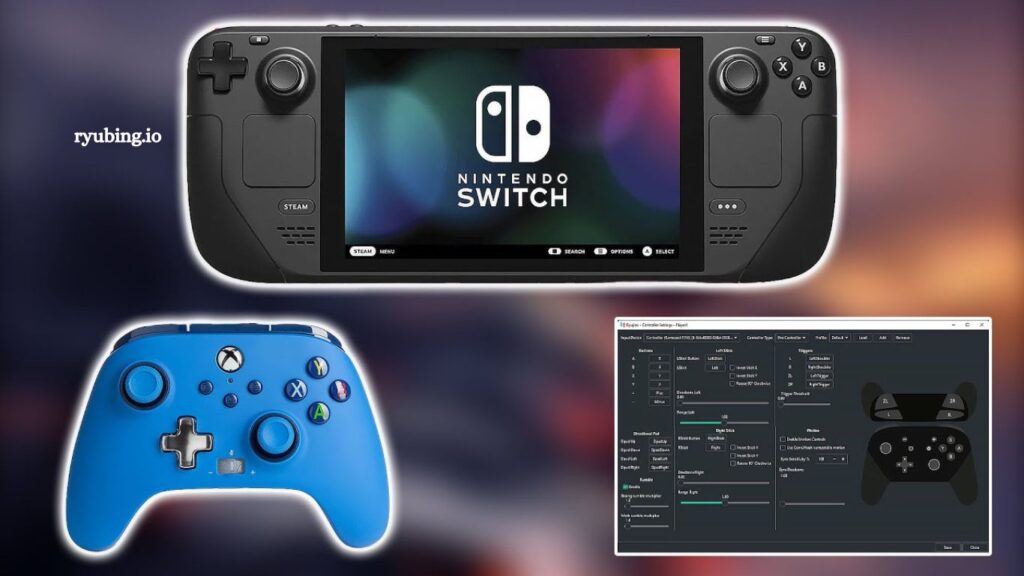
Using a controller with the Ryujinx emulator significantly improves gameplay comfort and delivers a console-like experience on PC. Many users switch from keyboard and mouse because controller support feels more natural for action, racing, adventure, and platform games. Proper configuration ensures smooth input response, accurate button mapping, and zero lag during gameplay.
This guide explains how to connect and configure a controller with the Ryujinx emulator, covering setup methods, supported devices, troubleshooting, and optimization tips. The instructions are simple, practical, and designed for both beginners and advanced users.
What is Ryujinx Emulator?
Ryujinx is a powerful open-source emulator designed to run Nintendo Switch games on Windows, Linux, and macOS systems. It focuses on accuracy, performance, and compatibility while offering a user-friendly interface.
The emulator supports multiple input methods, including keyboard, mouse, and controllers. Controller support is one of its strongest features, allowing players to replicate a real console experience with minimal setup.
Read More: Ryubing vs Competing Nintendo Switch Emulators: Which Performs Best?
Why Use a Controller with Ryujinx?
Controllers offer several advantages over keyboard input when playing emulator games:
- Improved control precision for movement-based gameplay
- Better comfort during long gaming sessions
- Native-like console experience
- Easier button mapping for complex game controls
- Enhanced immersion in racing, fighting, and adventure games
Ryujinx is optimized for controller input, making it the preferred choice for most users.
Supported Controllers for Ryujinx
Ryujinx supports a wide range of controllers through XInput and DirectInput protocols. The most commonly used devices include:
- Xbox One and Xbox Series X/S controllers
- PlayStation DualShock 4 controllers
- PlayStation DualSense controllers
- Generic USB gamepads
- Bluetooth wireless controllers
- Steam Deck built-in controller support
Xbox controllers generally provide the best compatibility because Windows natively supports XInput.
How to Connect a Controller to a PC
Before configuring Ryujinx, the controller must be properly connected to your system.
Wired Connection
Plug the controller directly into a USB port. Windows automatically installs drivers in most cases. Xbox controllers are instantly recognized.
Bluetooth Connection
Enable Bluetooth on your PC and put the controller into pairing mode. Select the device from the Bluetooth menu and complete pairing.
Steam Deck Users
Ryujinx automatically detects the built-in controller, though manual configuration may still improve performance.
Setting Up the Controller in the Ryujinx Emulator
Once the controller is connected, configuration inside Ryujinx is simple.
Step 1: Open Input Settings
Launch the Ryujinx emulator. Navigate to:
Options > Settings > Input
This section controls all controller configurations.
Step 2: Select Input Device
Under the input device dropdown menu, choose your connected controller. Common labels include:
- XInput Controller
- Wireless Controller
- DirectInput Device
Selection ensures Ryujinx recognizes the correct hardware.
Step 3: Configure Button Mapping
Ryujinx allows manual mapping of controller buttons. Assign each action carefully:
- A / B / X / Y buttons
- D-pad directions
- Analog sticks (left and right)
- Shoulder buttons (L / R)
- Triggers (ZL / ZR)
- Start / Select buttons
Mapping mirrors the Nintendo Switch layout, so that some adjustments may be required for PlayStation or Xbox controllers.
Step 4: Calibrate Analog Sticks
Adjust sensitivity and dead zones for smooth movement. Proper calibration prevents drift and improves accuracy in games that require precise control.
Step 5: Save Configuration
After mapping is complete, save settings. Ryujinx automatically applies configuration to all games unless changed later.
Recommended Controller Settings
Optimized settings improve gameplay performance and responsiveness:
- Enable XInput mode for Xbox controllers
- Set a dead zone between 10–15% for analog sticks
- Keep vibration enabled for immersive feedback
- Use the default sensitivity for the first setup, then adjust gradually
- Enable Pro Controller support if using Switch-style gamepads
These settings reduce input delay and ensure stable control behavior.
Connecting Wireless Controllers
Wireless controllers require additional steps for stable performance.
- Bluetooth Pairing Tips
- Keep the controller within close range of the PC
- Remove interference from other Bluetooth devices
- Fully charge the controller before pairing
- Reconnect if input lag appears
- USB Wireless Dongle
Some controllers come with proprietary USB receivers. Plugging them in usually provides better stability than Bluetooth.
Fixing Common Controller Issues
Controller setup may sometimes encounter issues. Here are solutions for the most common problems.
- Controller Not Detected
- Reconnect the USB cable or Bluetooth pairing
- Restart the Ryujinx emulator
- Update controller drivers
- Check the Windows device manager for errors
- Button Mapping Not Working
- Reset input configuration
- Reassign buttons manually
- Ensure the correct controller profile is selected
- Input Lag or Delay
- Switch from Bluetooth to a wired connection
- Close background applications
- Disable unnecessary overlays (Discord, Steam overlay)
- Update GPU and chipset drivers
- Analog Stick Drift
- Increase dead zone settings
- Recalibrate the controller in settings
- Clean analog sticks physically if needed
Advanced Configuration Tips
Advanced users can optimize controller performance further for a smoother experience.
Use Steam Input (Optional)
Steam Input can enhance compatibility for non-Xbox controllers. Add Ryujinx as a non-Steam game and configure controller settings through Steam.
Macro and Key Binding Customization
Ryujinx allows advanced mapping setups for specialized gameplay styles. Custom macros can simplify repetitive actions in complex games.
Vibration Adjustment
Vibration intensity can be fine-tuned for better immersion or disabled to conserve battery power.
Multiple Controller Support
Ryujinx supports multiplayer gaming with multiple controllers. Each device must be assigned a separate input profile.
Best Controllers for Ryujinx Emulator
Choosing the right controller improves the overall gaming experience.
Xbox Series X Controller
Highly recommended due to native Windows support, low latency, and ergonomic design.
PlayStation DualSense
Offers advanced haptic feedback and adaptive triggers in supported setups.
8BitDo Controllers
Popular among emulator users due to customization options and strong compatibility.
Generic USB Controllers
Budget-friendly but may require manual configuration.
Optimizing Performance with Controller Use
Controller usage also indirectly affects overall gameplay performance. Smooth input response depends on system optimization.
- Keep Ryujinx up to date with the latest version.
- Enable the Vulkan backend for better performance
- Use SSD storage for faster loading times
- Close unnecessary background applications
- Maintain stable FPS settings in the emulator
These improvements ensure controller input remains responsive during gameplay.
Troubleshooting Ryujinx Controller on Different Systems
Windows
Most stable environment for controller usage. Ensure drivers are updated regularly.
Linux
May require additional configuration through SDL or udev rules.
macOS
Supports most controllers but may require manual adjustments to pairing.
Frequently Asked Questions
Does Ryujinx support all controllers?
Ryujinx supports most Xbox, PlayStation, Bluetooth, USB, and generic game controllers through XInput and DirectInput compatibility.
Why is my controller not detected in Ryujinx?
Check USB/Bluetooth connection, restart the emulator, update drivers, and ensure the correct input device is selected in settings.
Which controller works best with Ryujinx?
Xbox Series X/S controllers offer the best compatibility, low latency, and plug-and-play support on Windows systems.
Can I use a wireless controller with Ryujinx?
Yes, wireless controllers work via Bluetooth or USB dongle, though wired connections usually provide more stable input.
How do I fix input lag in Ryujinx controller setup?
Reduce Bluetooth interference, switch to wired mode, close background apps, and update system drivers for better performance.
Is button mapping required for controllers in Ryujinx?
Yes, manual mapping ensures correct control layout, especially for PlayStation or third-party controllers.
Can I use multiple controllers in Ryujinx?
Yes, Ryujinx supports multiplayer gaming with multiple controllers by assigning separate input profiles for each device.
Conclusion
Setting up a controller with the Ryujinx emulator enhances gameplay by delivering smooth, responsive, and console-like control on PC. Proper connection, accurate button mapping, and optimized settings ensure stable performance across all supported games. Xbox controllers provide the most seamless compatibility, while other devices also perform well with correct configuration. A well-configured controller setup not only improves comfort but also elevates the overall gaming experience on Ryujinx.